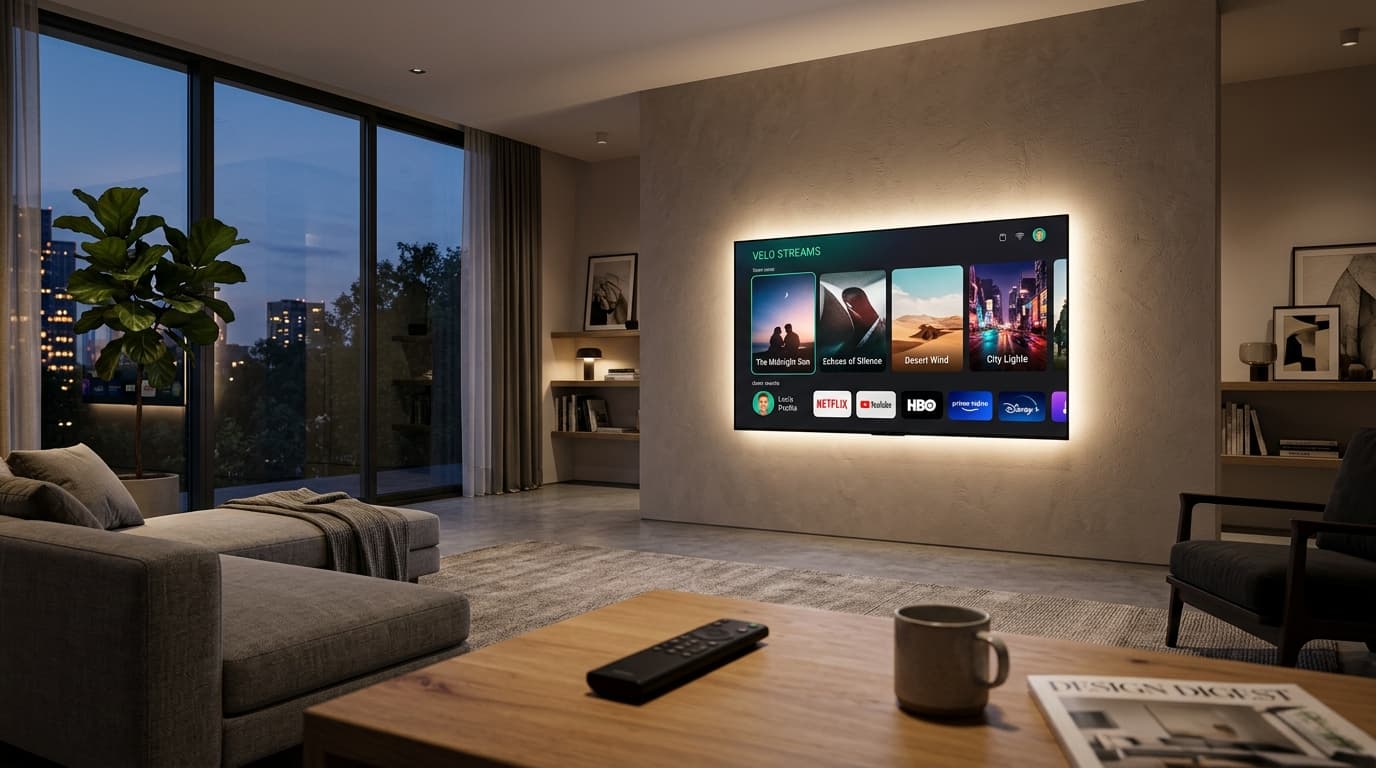
There is few household frustrations more universal than sitting down after a long day, turning on your modern 4K Smart TV, and waiting fifteen seconds just for the home screen to render. Video streaming apps like Netflix, Disney+, and YouTube frequently freeze during playback, audio falls out of sync with actor dialogue, and pressing the volume button on the remote feels like communicating over an interplanetary satellite link.
The root cause rarely lies with your display panel or internet bandwidth. Smart TVs are essentially budget computers equipped with low-power processors, modest RAM (often just 1.5GB to 2GB), and very limited internal flash storage. Over months of streaming, apps accumulate gigabytes of cached video thumbnails, advertising trackers, and corrupted temporary cookies. When internal storage drops below fifteen percent, the operating system aggressively thrashes memory, causing severe system-wide lag.
The Quick Diagnostics: Cold Reboot vs Standard Standby
Before digging through deep system submenus, it is crucial to recognize how Smart TV power buttons actually operate. When you tap the power button on your remote, modern televisions do not shut down; they enter a low-power standby sleep state designed for instant wake-up. This means background app processes, memory leaks, and cached buffers continue running uninterrupted for months on end.
- Samsung Tizen Cold Reboot: While the TV is on, press and hold the Power button on your remote for 5 to 7 seconds until the screen turns completely black and the red standby light blinks twice. The Samsung logo will appear, indicating a clean kernel restart.
- LG webOS Memory Purge: Press the Mute button on your LG Magic Remote rapidly three to five times until the quick diagnostic menu appears. Alternatively, power off the TV, unplug it from the wall outlet, hold the physical TV power button for 15 seconds to discharge residual capacitors, and plug it back in.
- Google TV / Android TV Soft Restart: Navigate to Settings (Gear icon) > System > Restart > Restart now. This terminates all zombie background apps and frees locked RAM immediately.
How to Clear App Cache on Samsung Smart TVs (Tizen OS)
Samsung's Tizen platform stores application cache in an isolated system directory accessible through the Device Care utility on modern models (2020 and newer):
- Press the Home button on your Samsung remote and navigate left to Settings (Gear icon).
- Scroll down to Support, then select Device Care (or Device Management on older firmware).
- The TV will automatically run a memory scan. Select Manage Storage at the bottom of the screen.
- You will see a list of installed apps. Highlight the laggy app (e.g., Netflix or Prime Video) and click View Details (or Options).
- Select Clear Cache, then select Clear Data if the app continues to crash. Repeat this process for your primary streaming apps.
How to Clear Cache on LG Smart TVs (webOS)
LG webOS manages temporary files differently. Unlike Android, webOS does not provide a single universal 'Clear App Cache' button for every third-party service. Instead, cache management is divided between the integrated web browser engine and individual app reinstallation:
- Clear WebOS Browser Data: Launch the TV's built-in Web Browser > Click the three-dot menu icon in the top-right corner > Settings > Scroll to 'Clear Browsing Data' and click 'Clear Data'. Since many webOS apps use WebKit containers, clearing browser cookies speeds up multiple streaming portals.
- Delete Unused Pre-installed Apps: Open the Home Dashboard > Hover over the app strip > Long-press the Select button on any app until Edit Mode (the pencil icon) opens > Click the 'X' icon above apps you never use to free crucial onboard flash storage.
Comparison of TV Operating Systems and Memory Recovery
| Platform | Typical RAM | Cache Clearing Method | Best Performance Tweak |
|---|---|---|---|
| Samsung Tizen | 1.5GB – 2.5GB | Settings > Support > Device Care > Manage Storage | Turn off Samsung TV Plus auto-preview |
| LG webOS | 1.5GB – 2.0GB | Browser Settings > Clear Data & App Reinstall | Disable Home Auto Launch in General Settings |
| Google TV / Android | 2.0GB – 3.0GB | Settings > Apps > See all apps > [App] > Clear Cache | Enable 'Limit background processes' in Dev Options |
| Roku TV OS | 512MB – 1.5GB | Home 5x > Up > Rewind 2x > Fast Forward 2x (Secret reboot) | Remove unviewed thematic streaming channels |
When All Else Fails: The Dedicated Streaming Dongle Solution
If your television is four or five years old, you may reach a physical ceiling where software optimizations no longer help. App developers continually bloat their interfaces to support high-end 8K animations and real-time video previews, leaving older television system-on-chips struggling to keep up.
Never discard a perfectly functioning 4K display panel because the built-in operating system is sluggish. Spending $30 to $50 on an external streaming device (like an Apple TV 4K, Chromecast with Google TV, or Amazon Fire Stick 4K Max) equips your display with modern processors and years of fluid updates.