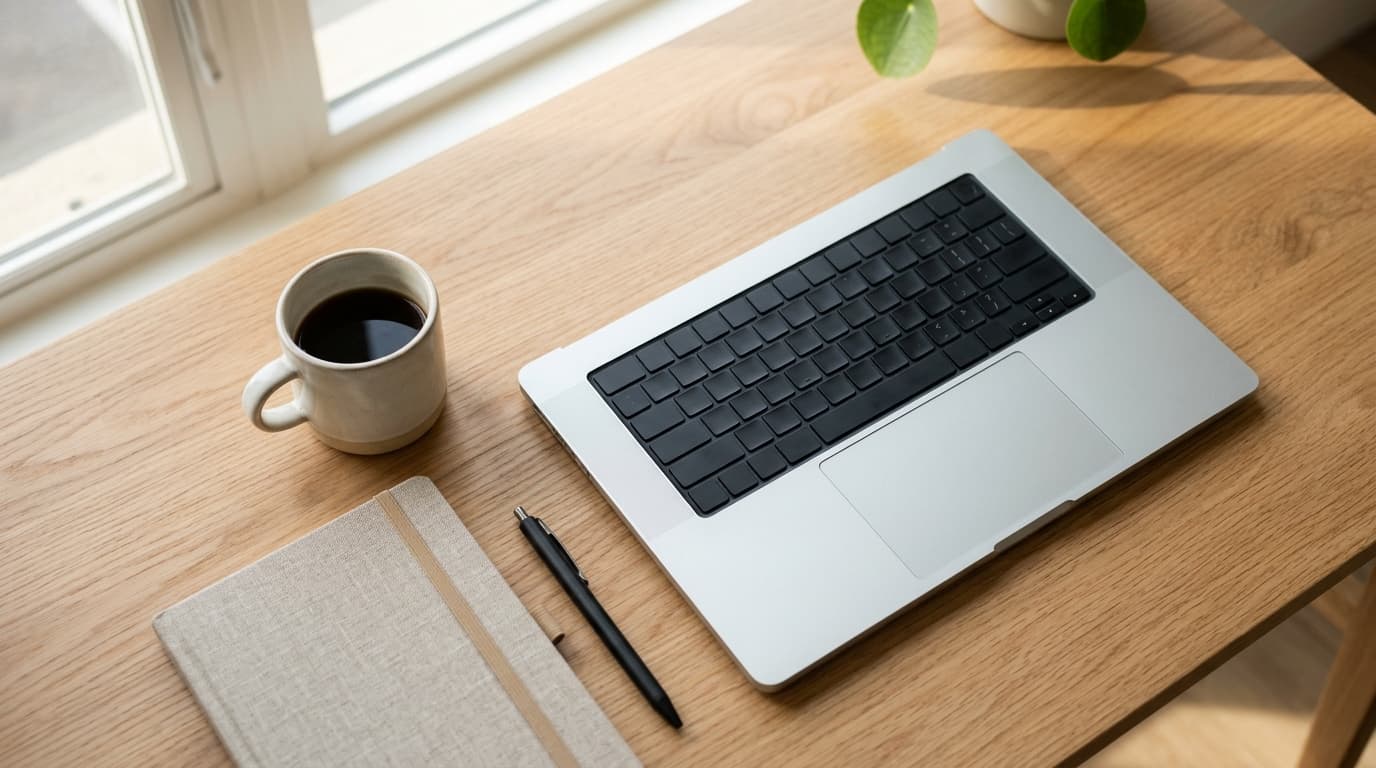
MacBooks earn endless praise for smooth glass trackpads and responsive keyboards, yet plenty of people use macOS for years clicking through menus manually just like an old desktop mouse workflow. Once you build muscle memory around ten essential keyboard shortcuts and hidden trackpad gestures, switching apps, renaming batches of files, and tiling windows turns effortless.
Better yet, none of these tricks require installing paid utility bloatware—everything below is baked directly into modern macOS right out of the box.
Essential macOS Shortcuts Worth Memorizing First
| Shortcut | Action Performed | Time-Saving Use Case |
|---|---|---|
| Cmd + Space | Open Spotlight Search & Quick Calculator | Launch apps, convert currency ($49 to EUR), or open files instantly |
| Cmd + Shift + 4 (then Space) | Capture exact window screenshot with shadow | Clean tutorial screenshots without manual cropping |
| Cmd + Shift + 5 | Screen recording & capture HUD toolbar | Quick screen recordings with built-in timer & mic choice |
| Option + Cmd + V | Move file instead of copying (Cut & Paste) | Clean file moves across Finder folders without duplicating |
| Cmd + Shift + . (Period) | Reveal or hide hidden dotfiles (.env, .gitignore) | Essential for developers & quick config edits |
| Control + Cmd + Q | Lock Mac display instantly | Step away safely in cafes or open offices |
Hidden Trackpad & Finder Gestures Most People Miss
1. Three-Finger Drag (Hidden Inside Accessibility!)
By default, clicking down physically on a Mac trackpad to highlight paragraphs or drag windows around strains your thumb over long afternoons. Apple hides a far smoother alternative under System Settings > Accessibility > Pointer Control > Trackpad Options > Use trackpad for dragging > Three Finger Drag. Once enabled, resting three fingers gently on the glass lets you grab windows, resize sidebars, and highlight text cleanly without pressing down once.
2. Quick Look & Native Spacebar Markups
Never double-click twenty PDFs or raw images inside Finder just to figure out which file is which. Highlight any file and tap Spacebar to pop open instant full-speed Quick Look preview—even letting you scrub video clips, rotate JPEGs, sign PDFs, or copy text inside photos without ever launching Preview or Photoshop. Tap Spacebar again to dismiss instantly.
- Four-Finger Pinch & Spread: Spread thumb and three fingers outward to shove all open windows off-screen temporarily so you can grab a file sitting on the Desktop.
- Look Up With One Tap: Enable 'Look up & data detectors' in Trackpad settings to tap any foreign phrase, tracking number, or address with three fingers for instant definitions and map previews.
- Batch Rename 100 Files at Once: Select multiple files in Finder, right-click > Rename, and format dates or sequential numbers cleanly without Terminal scripts.
- Paste and Match Style (Option + Shift + Cmd + V): Strips ugly giant web fonts and gray background highlights automatically when pasting text into Notes or Mail.
Workflow Tip: Modern macOS Sequoia and newer include native Window Tiling right under Window > Move & Resize (and Option-dragging windows to screen edges), eliminating the need for third-party snapping tools for most people.
3. Copy-Paste Files Cleanly With Option + Cmd + V
Former Windows switchers constantly complain that Cmd + X does nothing inside macOS Finder. On a Mac, you always start with standard Cmd + C to copy, navigate to your destination folder, and then decide at the destination whether to keep a duplicate (Cmd + V) or move the original file cleanly (Option + Cmd + V). Once learned, accidental broken half-cuts become impossible.
4. Master Sound & Brightness Fine-Tuning Steps
Hold Option + Shift while tapping your MacBook's brightness or volume keys to adjust output in subtle quarter-step increments instead of coarse blocks—handy late at night when one full volume bar sounds jarring yet quiet whispers vanish completely. Likewise, Option-clicking the Wi-Fi or Bluetooth icon inside the top menu bar reveals instant signal diagnostics, RSSI strength, router IP, and device firmware details without hunting deep inside System Settings.