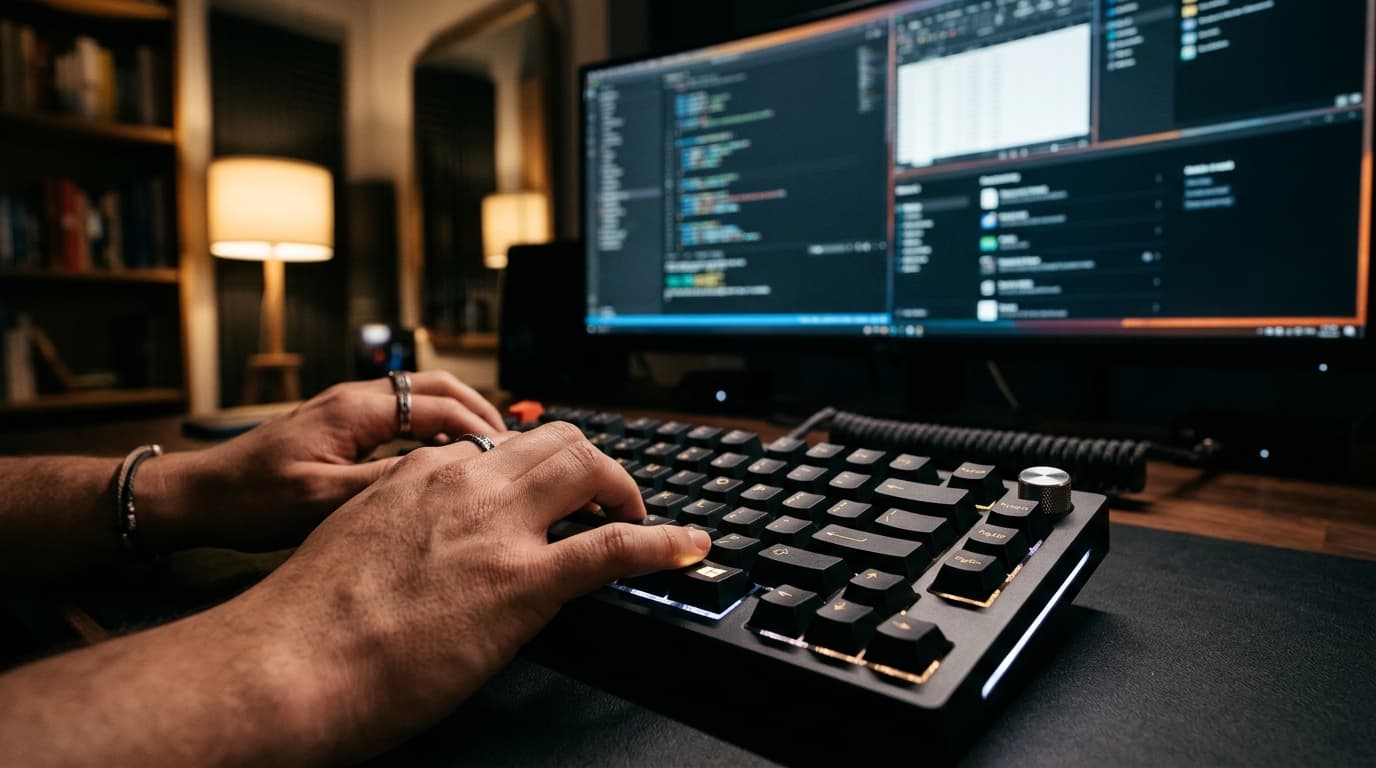
The average computer user wastes between twenty and forty minutes every working day performing repetitive physical mouse navigation: reaching across the desk, hunting for small toolbar buttons, clicking through nested context menus, and manually dragging window borders to arrange side-by-side documents. Over a full working year, that cumulative friction represents dozens of lost hours and unnecessary wrist fatigue.
The secret to power-user computing has never been secret software; it is keeping your hands anchored to the keyboard home row. Windows 11 includes dozens of brilliant, deeply integrated keyboard accelerators that bypass the graphical interface entirely. Let us master the most impactful shortcuts that will instantly transform your daily workflow.
The Essential Windows 11 Power Shortcuts Cheat Sheet
| Shortcut Combination | Function | Real-World Productivity Impact |
|---|---|---|
| Win + V | Advanced Clipboard History | Store up to 25 copied items, pin frequent snippets, insert emojis |
| Win + Shift + S | Snipping Tool OCR & Screen Snip | Instantly capture regions, extract text from images, annotate |
| Win + Z | Snap Layouts Grid | Tile active windows into 2, 3, or 4 quadrants with a number tap |
| Win + H | AI Voice Dictation | Speak natural speech with automatic punctuation and formatting |
| Win + Ctrl + D | Create New Virtual Desktop | Instantly spawn a clean desktop for focused project separation |
| Win + Ctrl + Left/Right | Switch Virtual Desktops | Seamlessly swipe between work, research, and personal environments |
| Win + Shift + Left/Right | Jump Active Window to Monitor | Throw current application to adjacent display without dragging |
| Win + . (Period) | Universal Emoji, GIF & Kaomoji Menu | Insert symbols, em-dashes, and currency symbols anywhere |
| Win + Alt + R | Background Screen Video Recording | Instant Xbox Game Bar video capture of bugs and workflows |
Mastering the Top 4 Time-Savers in Detail
1. Win + V: The Multi-Item Clipboard History Game Changer
Standard Ctrl+C only holds one piece of information at a time. If you copy a phone number, then accidentally copy a sentence of text, your phone number is lost forever. Pressing Win + V opens the Windows Cloud Clipboard. It preserves the last twenty-five items you copied—including text, URLs, and image screenshots. You can click the small pushpin icon next to frequently used items (such as your business tax ID, Zoom room link, or canned email response) so they remain saved even after a computer reboot.
2. Win + Shift + S: Screenshotting with Optical Character Recognition (OCR)
Forget the ancient 'Print Screen' button that forces you to open MS Paint and crop out your taskbar. Win + Shift + S freezes your screen and offers rectangular, freeform, window, or full-screen capture. Even better, Windows 11's modern Snipping Tool includes automatic Text Actions: click the text icon in the preview window, and Windows will use local machine learning to copy selectable text directly out of uncopyable images, PDFs, or video paused on YouTube.
3. Win + Z: Instant Window Snapping Without Mouse Dragging
Manually resizing browser windows and spreadsheets on ultra-wide or 4K monitors is clunky. Pressing Win + Z pops up visual Snap Layout templates in the top right corner of the window, each quadrant assigned a number (1, 2, 3, 4). Tapping the corresponding number key snaps your current window into place instantly, automatically prompting you to fill the remaining empty slots with other open apps.
4. Win + H: Studio-Grade Voice Dictation
If you need to draft a long email, blog outline, or meeting summary, typing at 60 words per minute is a bottleneck. Pressing Win + H activates Windows Speech Recognition powered by modern Microsoft neural language models. It handles conversational English fluidly, inserting periods, commas, and question marks automatically without forcing you to dictate verbal punctuation.
Professional speed is not about typing faster; it is about eliminating redundant cognitive transitions between mouse and keyboard. Memorizing just three of these shortcuts will shave hundreds of clicks from your day.