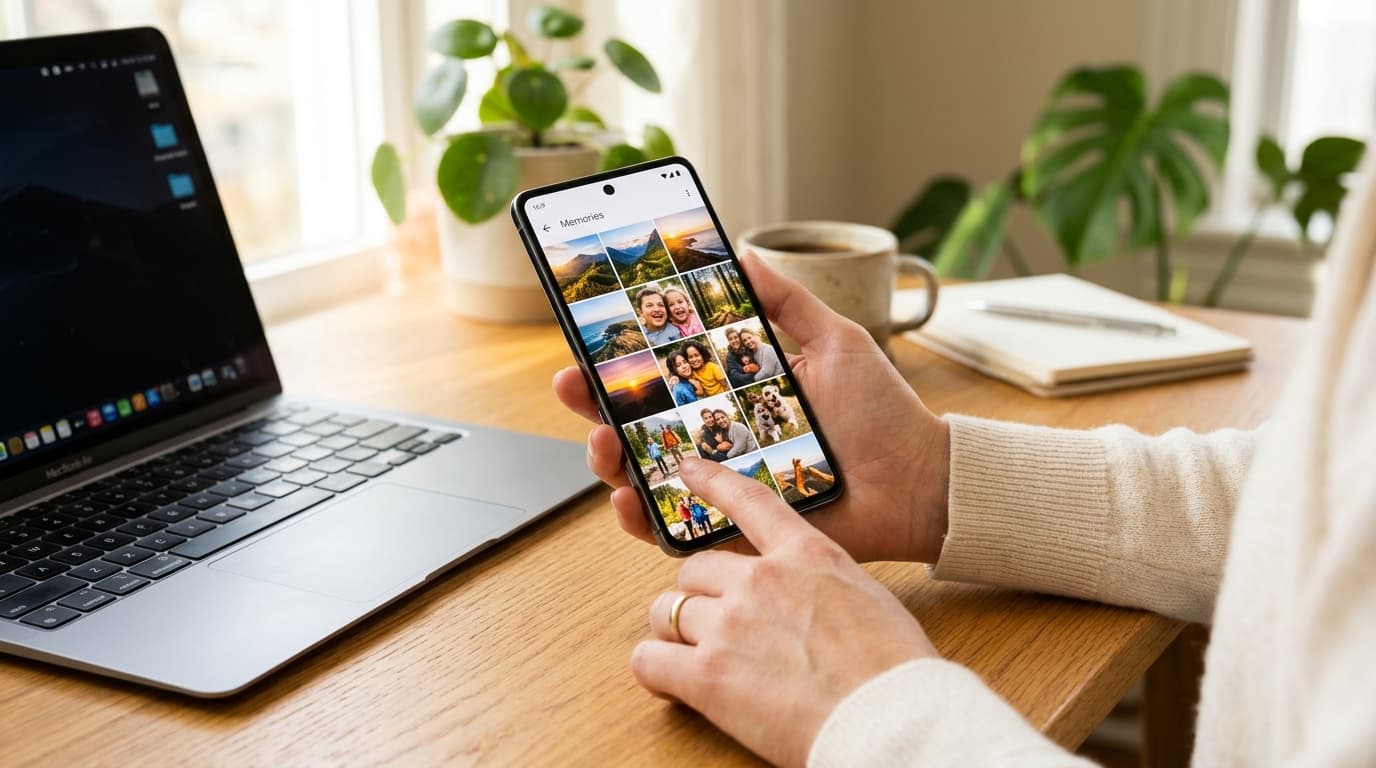
It is an instantaneous, gut-wrenching feeling: you were attempting to clear storage space on your smartphone, rapidly tapping checkboxes to delete blurry screenshots and duplicate receipts, only to realize seconds later that you selected an entire album of irreplaceable family vacation photos or irreplaceable memories of a loved one. You open the Trash folder, tap 'Empty Trash' in a haze of muscle memory, and suddenly the screen declares: 'Items permanently deleted'.
While Google's user interface presents permanent deletion as final, modern cloud architecture and mobile operating systems rarely erase data instantly. Digital files linger in backup server snapshots, local thumbnail caches, and storage sector tables for days or weeks before being physically overwritten. Before you despair, work through this definitive step-by-step data recovery protocol.
Step 1: Inspect the 60-Day and 30-Day Trash Buffers Across All Linked Accounts
Before attempting complex recovery procedures, verify whether the photos are truly purged from Google's server buffers. Google Photos utilizes two distinct trash timelines depending on your backup status:
- Backed-Up Photos: If the item was backed up to your Google cloud account before deletion, it resides in the Trash for 60 full days before automatic purging.
- Unbacked Local Device Photos: If the photo existed only on your Android phone's local storage and was not synced to the cloud, it resides in the trash for 30 days.
- Check Secondary Google Accounts: If you own multiple Google accounts (work, school, personal), tap your profile avatar in the top-right corner of Google Photos and switch accounts. Photos are frequently backed up to an unintended secondary profile.
Step 2: Check Google Drive's Hidden Files and Google Takeout Archives
Prior to July 2019, Google Photos automatically synchronized with Google Drive. While that direct two-way sync was discontinued, older photos or shared album uploads frequently persist in unexpected Google Drive directories:
- Log into drive.google.com on a desktop browser. Check the 'Google Photos' folder inside 'My Drive' if you created your account prior to 2019.
- Click the Google Drive Trash folder. Google Drive maintains an independent trash can from Google Photos that retains items for 30 days.
- Generate a Google Takeout Archive: Visit takeout.google.com, uncheck all services except 'Google Photos', and request a direct ZIP download. In many documented instances, Google's backend Takeout server clusters preserve image snapshots in batch processing queues even after the web interface displays the gallery as empty.
Step 3: Recover Local Cached Images from Android DCIM and Thumbnail Directories
If a photo was permanently purged from the cloud, a high-resolution cached thumbnail often remains intact on your Android smartphone's internal storage sector:
- Download a powerful file manager with hidden file visibility (such as Solid Explorer or FX File Explorer).
- Open Settings inside the file manager and toggle on 'Show Hidden Files and Folders'.
- Navigate to Internal Storage > DCIM > .thumbnails.
- Sort files by size or date modified. Android stores compressed JPEG copies of every photo ever displayed in your gallery inside this hidden folder. While these files may not carry original EXIF metadata or 4K resolution, they are frequently high enough quality (1080p) to preserve your memories.
Immediately stop taking new photos or downloading large apps if you intend to run local flash recovery software. New file writes physically overwrite the flash storage sectors where deleted photo raw bytes reside.
Step 4: Request Direct Recovery from Google One Cloud Support Specialists
If you subscribe to Google One (Google's paid cloud storage plan for Drive, Gmail, and Photos), you have access to a little-known, highly effective lifeline: direct human cloud support. Google maintains internal rolling server snapshots for disaster recovery that retain deleted files for approximately 21 to 30 days after permanent trash deletion.
- Visit one.google.com and log into your paid subscriber account.
- Scroll to the bottom of the dashboard and click 'Support'.
- Choose 'Chat' or 'Email' support and request to speak with a Cloud Specialist.
- State clearly: 'I accidentally emptied my Google Photos trash within the last 21 days due to an interface mistake. Could your engineering tier please initiate a storage volume snapshot rollback for my account?'
- In a majority of verified user cases, Google One support specialists can trigger an automated backend recovery script that restores thousands of deleted images back to your library within 24 to 48 hours.