Switching mobile ecosystems used to feel like packing up a digital household without a moving truck. Users routinely surrendered years of text message archives, lost critical family photo metadata, and spent stressful evenings manually re-entering phone numbers. Fortunately, modern platform migration tools have matured dramatically—provided you know the exact order of operations to avoid common wireless handshake pitfalls.
Whether you just unboxed a brand-new iPhone or you are helping a family member migrate from a Samsung Galaxy or Google Pixel, this tested tutorial guides you through the cleanest wireless transfer pathway, highlights what transfers automatically, and flags the crucial items you must manually safeguard before wiping your old device.
Pre-Flight Preparation: Five Things You Must Do First
Ninety percent of transfer failures occur because users rush into the pairing process without establishing stable operating conditions. Before powering on your new iPhone's initial setup screen, complete these non-negotiable preparation steps on your Android device:
- Connect Both Devices to AC Power: Wireless migration moves tens of gigabytes over a continuous local Wi-Fi direct connection. If either battery drops below twenty percent, the operating system will throttle background radios and sever the connection.
- Install the Official 'Move to iOS' App: Download the legitimate Apple utility directly from the Google Play Store on your Android handset.
- Disable Mobile Data and Smart Network Switch: Android's battery and connectivity managers frequently drop Wi-Fi connections that lack active internet gateways. Turn off cellular data completely during the transfer.
- Update WhatsApp to the Latest Build: Verify that your WhatsApp installation is fully updated on Android to ensure its built-in iOS chat migration engine is ready.
- Audit Storage Capacity: Check how many gigabytes your Android phone currently holds. Your destination iPhone must have greater free storage than your total Android footprint, or the transfer will abort midway.
Step-by-Step Walkthrough: Executing the Transfer
Keep both devices within six inches of one another on a flat surface throughout this process:
- Power on your new iPhone and navigate through language and regional selections until you reach the 'Quick Start' screen.
- Tap 'Set Up Without Another Device' at the bottom of the screen, then select 'From Android' when presented with the 'Transfer Your Apps & Data' menu.
- Open the Move to iOS application on your Android phone, accept the terms, and grant permission requests for contacts, SMS messages, and local storage access.
- On your iPhone, tap Continue on the 'Move from Android' screen. A one-time six-digit or ten-digit numeric code will appear.
- Enter this security code into your Android handset. The iPhone will broadcast an ad-hoc local Wi-Fi hotspot; tap 'Connect' on Android to bind the radios.
- Select the data categories you wish to migrate (Contacts, Message history, Camera roll photos/videos, WhatsApp, and Google account credentials), then tap Continue.
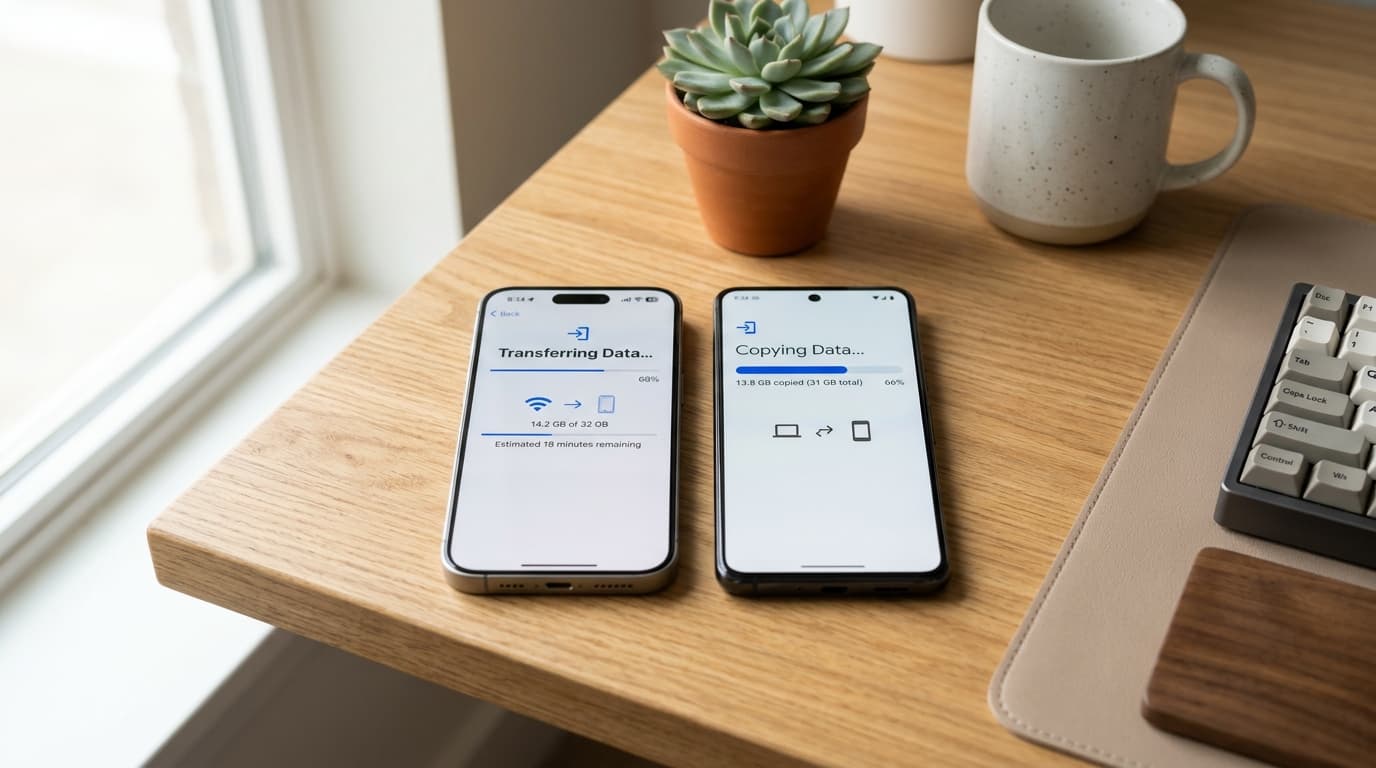
- Leave both screens untouched until the loading progress bar on the iPhone reaches one hundred percent. Even if your Android phone displays 'Complete' early, do not touch either device until the iPhone confirms completion.
Migration Breakdown: What Transfers Automatically vs. What Requires Manual Setup
While Apple's migration tool handles the heavy lifting, platform security boundaries prevent certain private vaults and local files from transferring across operating system lines. Here is exactly what you can expect:
| Data Category | Transfer Method | User Action Required |
|---|---|---|
| Contacts & Address Book | Automatic via Move to iOS | None; verifies instantly in iOS Contacts app |
| SMS & MMS Text Threads | Automatic via Move to iOS | None; maps into native iOS Messages |
| Camera Roll Photos & Videos | Automatic via Move to iOS | Allow background indexing in Photos app |
| WhatsApp Chat History | Encrypted In-App Migration | Requires verifying same phone number on iPhone |
| Free App Store Matches | Automated App Store Suggestions | Tap 'Add Apps' during post-setup prompt |
| Two-Factor (2FA) Authenticator Keys | Manual Export Required | Must use Google Authenticator Cloud Sync or QR transfer |
| Local Downloads & PDF Files | Manual Cloud Transfer | Upload to Google Drive / OneDrive before switching |
Special Handling: Migrating WhatsApp Chats and Encrypted Media
WhatsApp chat migration is the single most common area where switchers experience panic. Because WhatsApp conversations are end-to-end encrypted with private keys generated on your Android hardware, Apple's standard file copy engine cannot simply copy the database files into iOS storage. Instead, WhatsApp built a dedicated decryption bridge into the Move to iOS pipeline.
When prompted on your Android screen during the transfer selection phase, tap WhatsApp. A dedicated WhatsApp screen will launch, package your encrypted database, and flag your account for iOS onboarding. Once your iPhone reaches its home screen, download WhatsApp from the App Store and verify your phone number using the exact same SIM card or eSIM used on Android. Tap 'Start' when prompted to restore your chat history. Crucially, do NOT set up WhatsApp as a new account or attempt to restore from iCloud during initial launch; let the local on-device migration package complete its handshake.
Exporting Google Authenticator and 2FA Security Tokens
Perhaps the most dangerous mistake a user can make when switching platforms is wiping their Android handset while their two-factor authentication (2FA) keys remain locked inside an offline authenticator app. Move to iOS does NOT copy time-based one-time password (TOTP) vaults due to hardware-level sandboxing protections.
Before touching the factory reset button on your old device, open Google Authenticator on Android, tap the menu icon, and select 'Transfer accounts' followed by 'Export accounts'. Select all active service tokens. Your Android screen will display a dense export QR code. Open Google Authenticator on your new iPhone, tap 'Import accounts', and scan the QR code directly from your Android display. Verify that your banking, work email, and exchange codes generate synchronized numeric tokens before power cycling your old handset.
Post-Transfer Checklist Before You Wipe Your Android Device
Never perform a factory reset on your Android handset immediately after finishing the transfer wizard. Keep your old phone connected to home Wi-Fi for at least forty-eight hours and perform these three sanity checks:
- Verify Banking and 2FA Apps: Log into your primary banking applications, password managers, and two-factor authentication tools on the iPhone to confirm facial recognition or SMS codes function smoothly.
- Check Missing WhatsApp Attachments: Open a few media-heavy WhatsApp conversations to ensure shared images and voice notes populated correctly.
- Confirm Google Photos Cloud Sync: If you previously used Google Photos, install the Google Photos app on iOS and log in with your primary Gmail address so your entire cloud archive remains accessible alongside Apple iCloud.