You take a magnificent landscape photograph on your weekend vacation, open it on your desktop monitor, carefully tweak the saturation and exposure until the sunset looks breathtaking, and upload it to social media. An hour later, you check your post from your smartphone or iPad, and you are horrified: the sky is nuclear magenta, the dark shadows are crushed into muddy black voids, and skin tones look sickly yellow.
The culprit is not your camera or your editing skills; it is your uncalibrated computer monitor. Out of the box, most consumer monitors are intentionally tuned by manufacturers for 'showroom eye-candy' rather than accuracy. They ship with overly cool, harsh 7500K color temperatures (giving whites an artificial bluish tint), over-driven contrast ratios, and blown-out brightness levels designed to stand out under fluorescent warehouse store lighting. Here is how to restore true-to-life color fidelity.
Step 1: The Essential Environmental and Hardware Pre-Checks
Before adjusting a single slider, you must prepare your display hardware and lighting environment:
- Warm Up the Display for 30 Minutes: Liquid crystal panels (IPS/VA) and LED backlights experience thermal drift as they warm up. Let your monitor run continuously for at least half an hour so backlight luminance and color temperature stabilize.
- Control Ambient Room Lighting: Never calibrate a monitor with direct sunlight hitting the screen or harsh incandescent lamps reflecting off the panel. Dim your room lighting to moderate, consistent levels.
- Disable Operating System Color Filters: Turn off Windows 'Night Light' or macOS 'True Tone' and 'Night Shift'. These features dynamically alter white balance throughout the day and completely ruin color calibration.
Step 2: Calibrating On-Screen Display (OSD) Hardware Controls
Use the physical buttons or joystick on your monitor's bezel to access its internal firmware settings:
- Set Color Temperature to Warm / 6500K (D65): In color settings, select the 'Warm' preset or manually set color temperature to 6500 Kelvin (D65). This represents the international standard for neutral daylight white.
- Adjust Brightness to 120 cd/m²: Factory brightness is usually set to 100% (350+ nits), which strains eyes and causes prints to look overly dark. Lower your monitor brightness to between 30% and 45% (roughly 120 nits for comfortable indoor viewing).
- Set Gamma to 2.2: Standard web and video content is mastered for a 2.2 gamma curve. Verify your monitor's OSD is set to 'Gamma 2.2' rather than 1.8 or dynamic contrast.
- Disable 'Dynamic Contrast' and 'Super Resolution': Turn off all manufacturer image processing gimmicks that artificially sharpen edges or alter backlights dynamically.
Calibration Methods Compared: Free Software vs Hardware Colorimeters
| Method | Tools Used | Precision Level | Approximate Cost | Best For |
|---|---|---|---|---|
| Windows Display Color Calibration (DCCW) | Built-in Windows wizard | Visual approximation (Subjective) | Free (Built into Windows) | Everyday office typing & basic browsing |
| macOS Display Calibrator Assistant | Built-in Apple Expert Mode | Moderate (Hardware curves) | Free (Built into macOS) | General office and student Mac setups |
| Hardware Colorimeter (Datacolor Spyder / Calibrite) | Physical optical sensor + DisplayCAL | True Professional Laboratory Precision | $160 – $280 | Photographers, video colorists & print designers |
| Factory Calibrated Presets (sRGB Mode) | Monitor firmware sRGB clamp | High (If Calman certified at factory) | Included with pro monitors | Creators buying ProArt or Dell UltraSharp |
Step 3: Creating a Custom ICC Color Profile
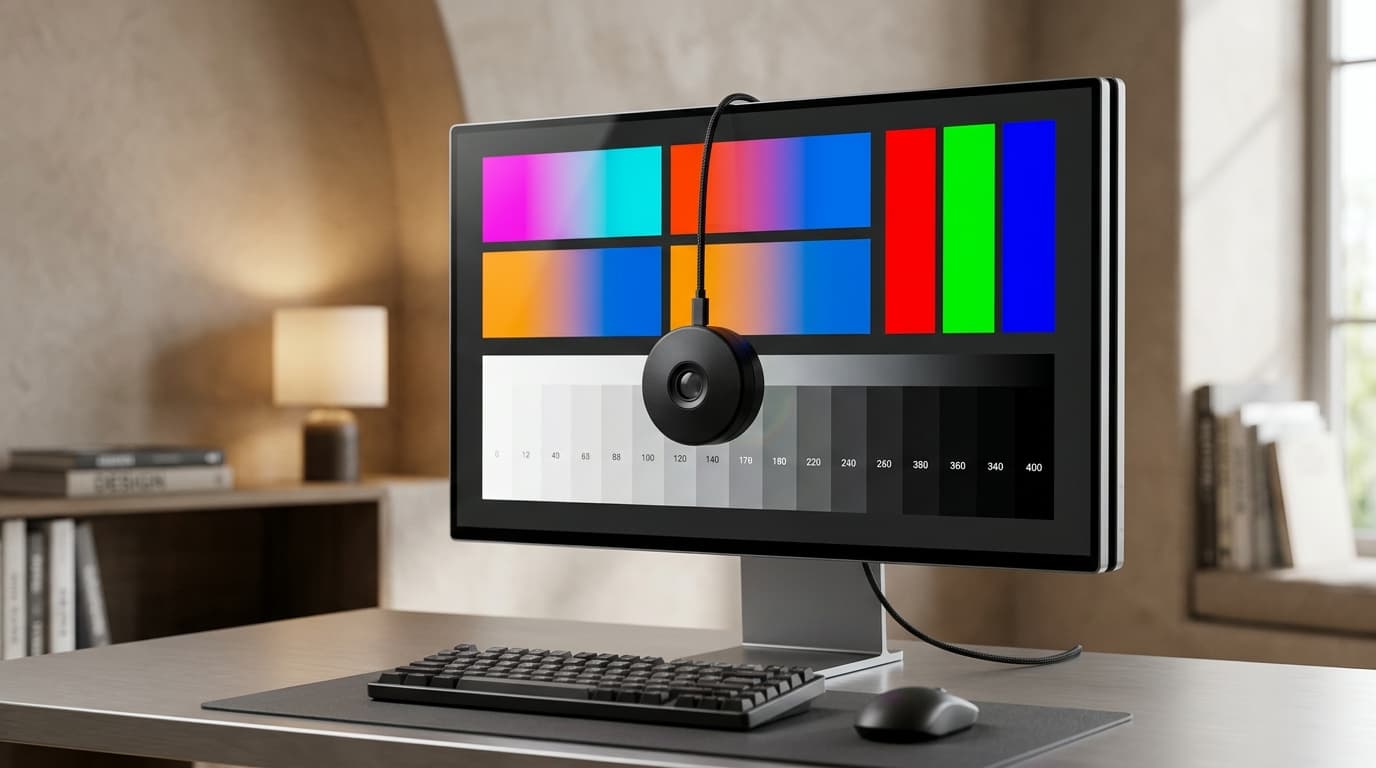
If you invest in a hardware colorimeter (like the Datacolor SpyderX2 or Calibrite Display Pro HL), pair it with the free, open-source software DisplayCAL instead of bloated proprietary manufacturer tools.
DisplayCAL flashes hundreds of standardized color swatches across your screen while the optical sensor reads exact chromaticity and luminance. It generates a precision 16-bit 3D LUT (Look-Up Table) and installs a custom `.icc` color profile into your operating system, ensuring that Photoshop, Lightroom, and DaVinci Resolve render identical, accurate colors.