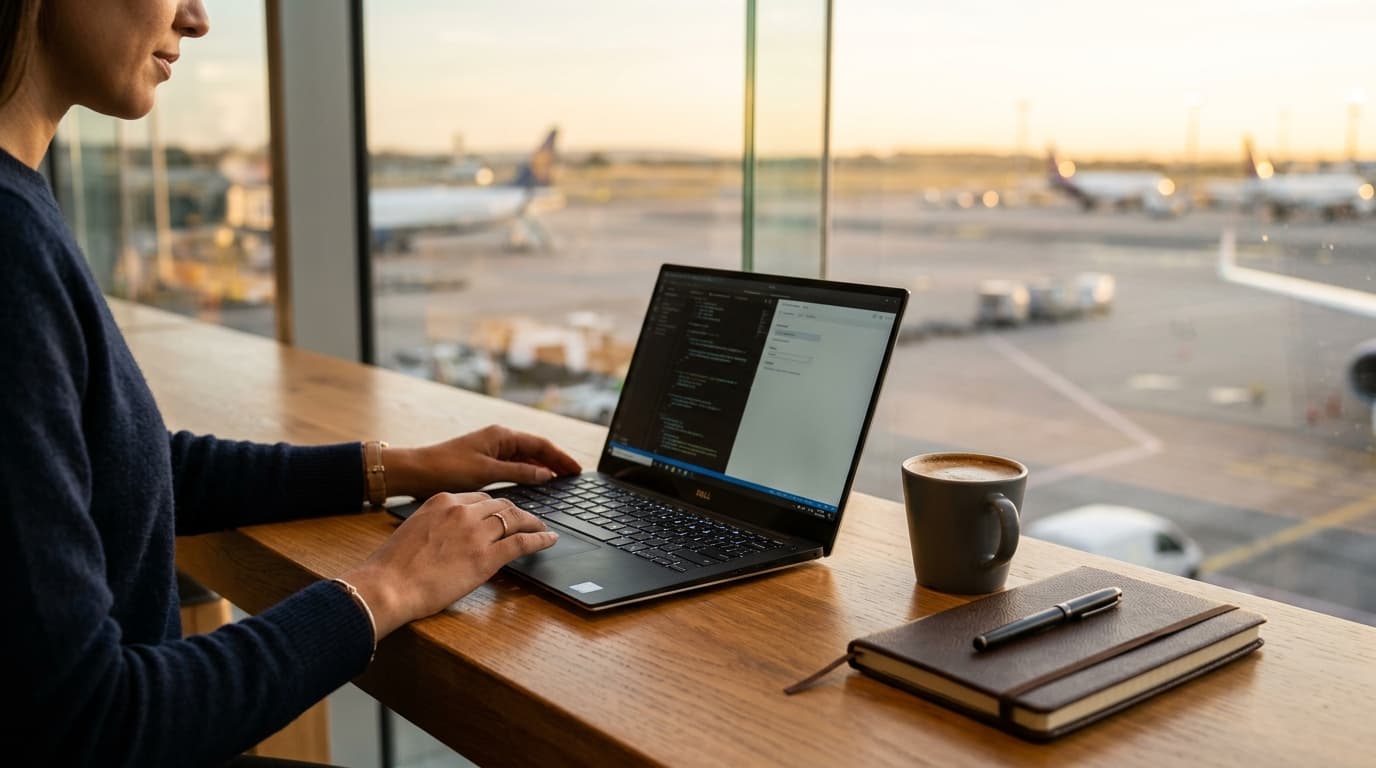
There is few professional emergencies more stressful than watching your laptop's battery indicator drop from forty percent down to fifteen percent while you are sitting in an airport departure lounge or client boardroom with forty-five minutes of critical presentation deck preparation remaining and every single electrical wall outlet occupied. Laptop manufacturers claim eighteen hours of battery life on marketing spec sheets, but running real-world enterprise applications—twenty browser tabs, video calls, Slack, and cloud syncing—often burns through a full charge in four to five hours.
When power outlets are unavailable, passive hope is not a strategy. You must take active control of your system's hardware energy consumption. By systematically dialing back the primary power-hungry components inside your machine—the display backlight, refresh rate controller, background telemetry processes, and browser rendering engines—you can easily claw back an extra two to four hours of vital computing runway.
Tactic 1: The Display Thermodynamics (Brightness & Refresh Rate)
Your computer screen is by far the single largest consumer of electrical energy on your entire system, accounting for up to forty percent of total system power draw. Two settings make a monumental difference:
- Drop Brightness from 100% to 50%: The relationship between backlight brightness and electrical power is non-linear. The jump from 50% to 100% brightness demands nearly triple the power wattage. Lowering your screen brightness to the minimum comfortable level (typically 40% to 50% in indoor environments) instantly buys you an extra hour of runtime.
- Throttle 120Hz Displays Down to 60Hz: High-refresh-rate displays (120Hz ProMotion on Mac, or 144Hz/165Hz on Windows) refresh the panel twice as frequently every single second, forcing the GPU and display engine to work continuous overtime. In Windows Settings > Display > Advanced Display, switch the refresh rate from 120Hz down to 60Hz. On macOS, enabling 'Low Power Mode' automatically locks ProMotion to 60Hz.
Tactic 2: Tame the Web Browser Memory and CPU Hog
Modern web applications are essentially resource-heavy software running inside your browser. Background tabs containing animated advertisements, auto-playing video streams, and infinite-scrolling social media feeds relentlessly siphon CPU cycles even when you aren't viewing them.
- Enable Native Memory Saver: In Google Chrome or Microsoft Edge, go to Settings > Performance and ensure 'Memory Saver' is set to Aggressive. This suspends background tabs, freeing CPU load and battery consumption.
- Switch from Chrome to Native Browsers on Battery: On macOS, Apple Safari is deeply optimized for Apple Silicon hardware acceleration, consuming roughly 25% to 30% less battery than Google Chrome during web browsing. On Windows, Microsoft Edge's 'Efficiency Mode' outperforms third-party browsers on battery.
Tactic 3: Terminate Background Cloud Sync and Telemetry Daemons
When your battery is low, continuous cloud background synchronization is your worst enemy. Applications like Dropbox, Google Drive, OneDrive, and Adobe Creative Cloud continuously monitor local file systems for micro-changes, constantly pinging cloud servers over Wi-Fi.
Emergency Pro-Tip: Pause cloud syncing in your taskbar system tray. Pausing OneDrive or Google Drive desktop sync stops continuous disk read/write cycles and cellular/Wi-Fi modem transmission, preventing sudden battery drains.
Tactic 4: Activate Native Operating System Power Savers
Do not wait until your battery hits ten percent before enabling battery-saver modes. Activating power saving early dramatically extends the discharge curve:
- Windows 11 Energy Saver: Click the battery icon in the system tray and tap 'Energy Saver'. This throttles processor peak frequencies, suspends background push notifications, dims non-essential lighting, and disables transparent window visual effects.
- macOS Low Power Mode: Go to System Settings > Battery > select 'Always' or 'Only on Battery' next to Low Power Mode. This reduces CPU clock speeds and turns off background mail polling while keeping everyday typing and document editing completely smooth.
Tactic 5: Disconnect External USB Accessories
Leaving external accessories plugged into your laptop's USB-C ports is a silent power leak. An external mechanical RGB keyboard, a wireless mouse USB dongle, or an external portable SSD continuously draw electrical current from your laptop's main battery to power internal microcontrollers and LEDs even when idle. Unplug all external peripherals and rely on your laptop's built-in keyboard and trackpad.